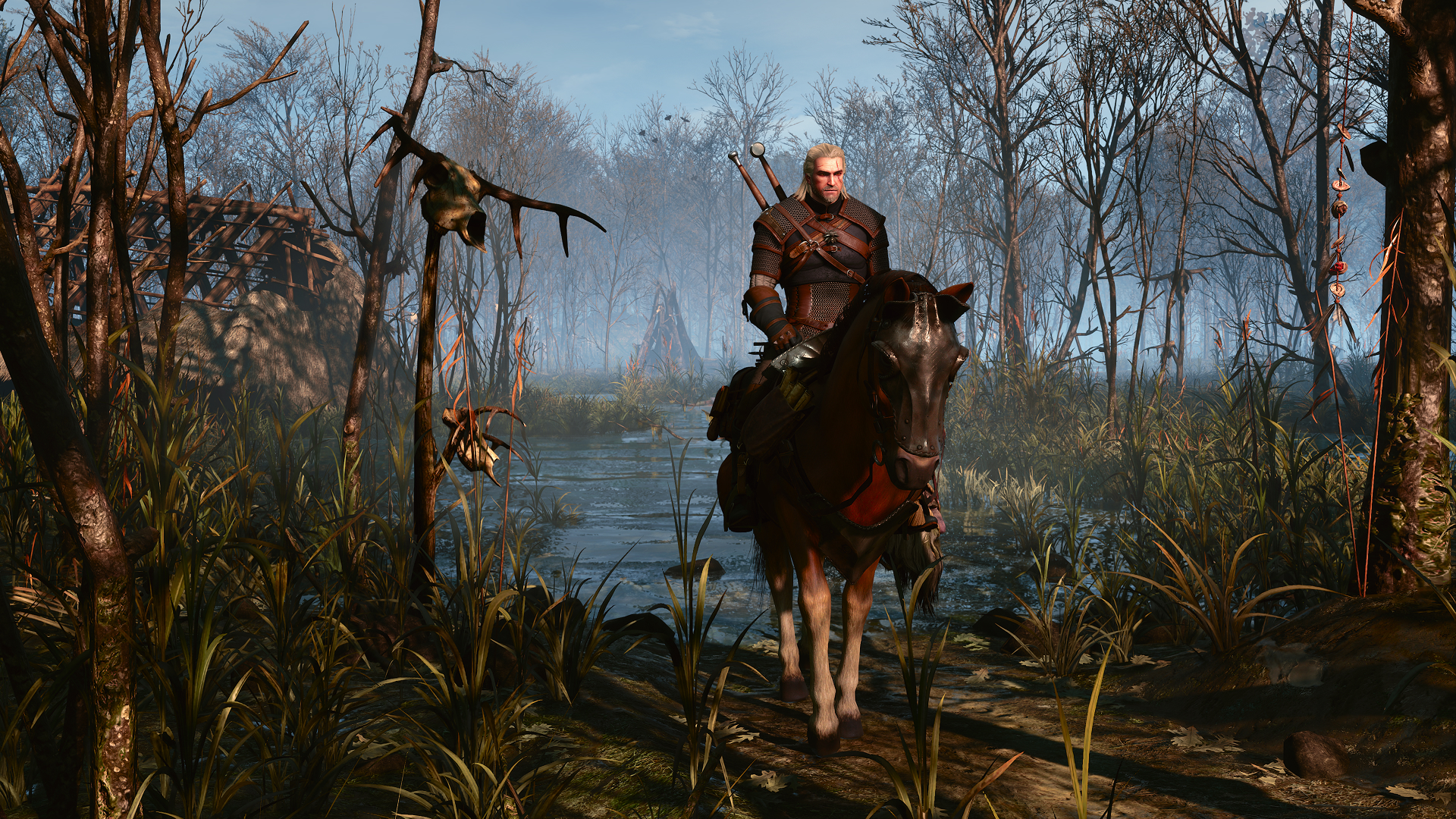
The Witcher 3 HD Reworked Project: Ultimate Visual Guide 2026
Discover how to install The Witcher 3 HD Reworked Project to transform your game with 4K textures and realistic models. Get the best visual experience today.
Updated: The Witcher 3 Wiki Editorial Team
Table of Contents
The Witcher 3 remains a masterpiece of storytelling, but as gaming hardware evolves, players are constantly looking for ways to push the game's fidelity to new heights. If you are playing The Witcher 3 in 2026, the HD Reworked Project stands as the definitive way to modernize your visual experience without losing the original art style.
This project is more than just a simple texture swap; it is a comprehensive overhaul that enhances thousands of assets, from terrain and architecture to vegetation and character models. By integrating these high-quality assets, you can transform the Continent into a truly next-gen masterpiece, ensuring that every frame looks as sharp and detailed as a modern AAA title.
Understanding the Visual Impact of HD Reworked
The core philosophy behind this mod is to maintain the original artistic vision of CD PROJEKT RED while significantly increasing asset density and resolution. Many textures are reworked to 4K, providing a level of crispness that makes weathered stone, wooden structures, and distant landscapes look significantly more realistic.
Key Visual Improvements
The mod focuses on several technical pillars to achieve its signature look. By implementing relief mapping, the modder, Halk Hogan PL, has added depth to surfaces that previously appeared flat. This creates a tangible sense of texture on walls and floors.
Feature
Technical Improvement
Visual Result
Textures
4K Upscaling
Sharper, more detailed surfaces
Models
High-Poly Meshes
Smoother curves and edges
Relief Mapping
Surface Depth
Realistic 3D appearance on flat objects
LODs
Improved Draw Distance
Less pop-in for distant objects
Preparation and Installation Steps
Before you begin, ensure you have a clean installation of the game. While the mod is highly compatible, it is best practice to keep your modding environment organized. Always check the official Steam store page to ensure your base game is up to date, as specific mod versions (Old Gen vs. NextGen) must match your game build.
Essential Installation Workflow
Download the Assets: Visit the official mod page to download the main files. If you have a slower connection, use the multi-part optional files.
Folder Preparation: Extract the contents into your main game directory. The path should look like C:\Games\Witcher 3.
File Replacement: Allow the installer to replace necessary folders. This ensures that the new high-resolution assets take priority over the base game files.
Configuration: If you choose the "Ultra HD Config" option, it will automatically optimize settings for 4K rendering and improved texture budgets.
Tip
Managing Mod Priority
If you are using multiple graphical mods, ensure the HD Reworked Project has the highest priority in your load order. This prevents visual glitches and ensures that the mod's textures are the ones rendered by the engine.
Performance Considerations for Modern Hardware
A common concern among players is whether such a significant visual upgrade will cripple their frame rate. According to community reports, the mod is remarkably well-optimized. Because the assets are carefully crafted to avoid unnecessary VRAM bloat, most users with mid-to-high-end GPUs will see minimal impact on performance.
Hardware Impact Estimation
Performance loss is typically negligible (0–5 FPS) depending on your PC specifications. However, if you opt for the "Ultra+" texture settings, your VRAM demand will increase.
GPU Tier
Expected Performance
Recommendation
Entry Level (3GB VRAM)
Stable
Use standard settings
Mid-Range (4GB-6GB VRAM)
Smooth
High-quality textures recommended
Enthusiast (8GB+ VRAM)
Perfect
Ultra+ settings enabled
Compatibility with Other Mods
One of the greatest strengths of this project is its compatibility with lighting overhauls. Whether you prefer the vanilla lighting or popular community-made lighting mods, this texture pack acts as a solid foundation.
However, players should be cautious when mixing multiple texture-heavy mods. Based on player experiences on the CD PROJEKT RED forums, loading too many texture-modifying packs simultaneously can lead to memory overflow or flickering textures. If you notice strange visual artifacts, the culprit is often a conflict between two mods trying to modify the same asset. Always prioritize the HD Reworked Project to ensure it remains the visual baseline.
Troubleshooting Common Issues
Even with a smooth installation, you might occasionally run into issues. Below are the most frequent problems reported by the community and how to resolve them.
Quick Fixes for Common Errors
Missing Textures: If you see "checkerboard" patterns on objects, it usually means your game version is mismatched with the mod version. Verify your game files via Steam and re-install the correct mod package.
Performance Stutters: If you experience micro-stutters, check your VRAM usage. Disabling "Ultra+" settings usually resolves this for users on 4GB-6GB cards.
Installer Pathing: Always verify that you are pointing the installer to the root Witcher 3 folder, not the bin or content subfolders.
Warning
Backup Your Config Files
Before applying any custom configurations or .ini tweaks, always create a backup of your original user.settings file. This allows you to revert to a working state if the new configuration causes launch crashes.
FAQ: Frequently Asked Questions
Does The Witcher 3 HD Reworked Project change the gameplay mechanics?
This is a visual overhaul rather than a combat or quest rewrite. That does not guarantee save safety or compatibility with every version and mod combination. Check the author's supported versions and back up your saves first.
Can I use this mod with the NextGen update?
Yes, there is a specific edition of the mod designed for the NextGen version of the game. Always ensure you download the version labeled for your specific game build to avoid crashes.
Is it difficult to uninstall if I don't like the changes?
The mod includes its own uninstaller. Simply navigate to your game folder and run the uninstall executable, or manually delete the modHDReworkedProject folders in your mods directory.
Will this mod work on older versions of the game?
Yes, the creator provides specific versions for older game builds (such as 1.31/2.0) available in the miscellaneous files section of the mod page.